
Draw the course
Place the start, the controls and the finish on the aligned map, reuse controls from other courses, add map flips, and add a course to a map that is already published.
The Course stage is optional: you can publish a map with no course and add courses to it later.
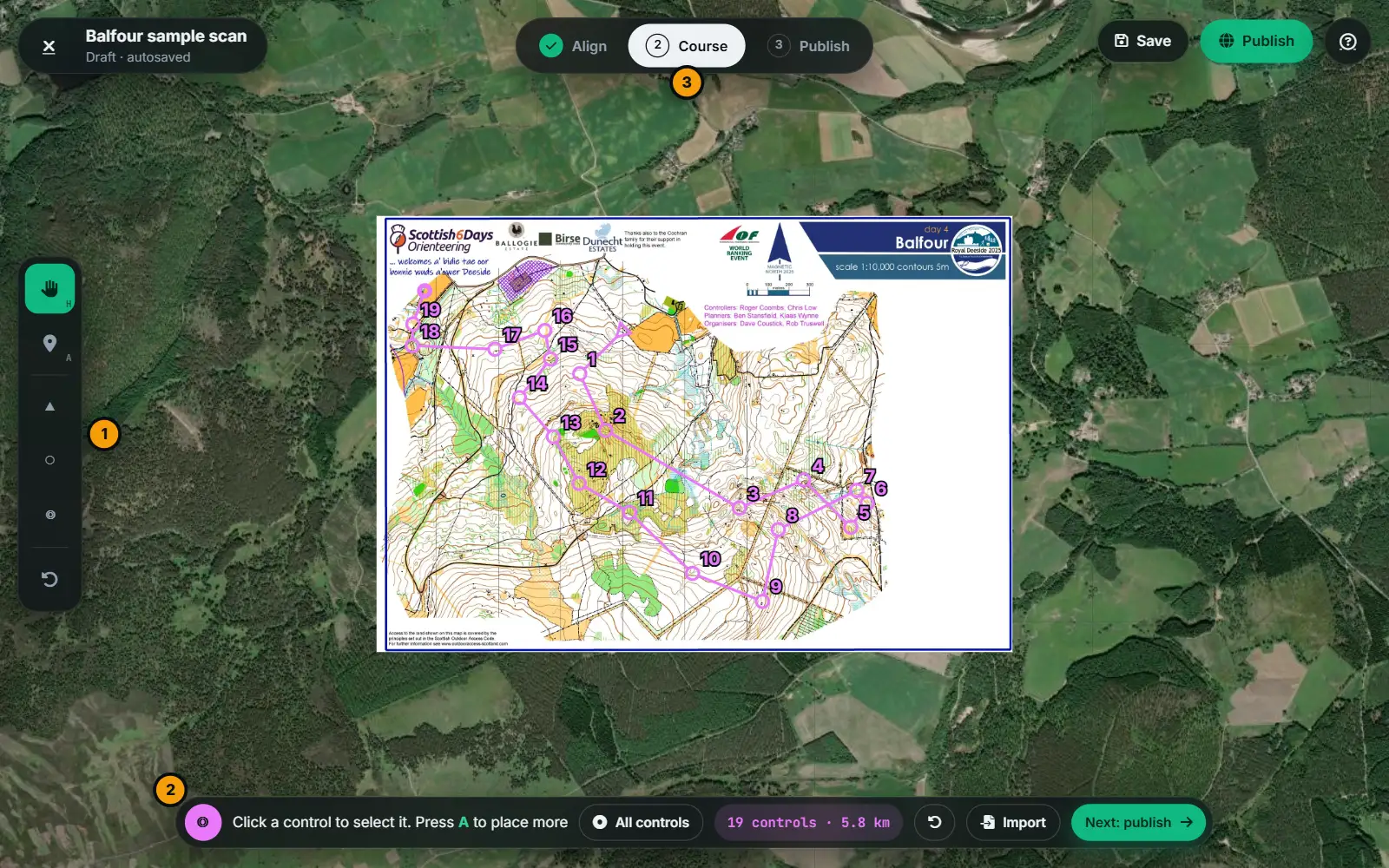
#Place controls
- Press Course at the top, or Next: course on the Align stage.
- The tools on the left are Pan and select (H), Place controls (A), and the three types: Place the start (a triangle), Place controls (a circle) and Place the finish (a double circle).
- Click the map to place the start first. The tool then changes to controls by itself, and the hint says which number comes next. Click the position of each control in order. Choose Place the finish and click for the last one.
The course is drawn as you go in purple: circles, a start triangle, a double circle for the finish, legs between them and the control numbers. There can be only one start and one finish; placing another replaces it.
Controls are numbered automatically in the order you place them. You can't type your own codes, or insert a control in the middle: delete and re-place the ones after it.
The bar shows the number of controls and the length of the course so far, in a straight line from control to control (for example 12 controls · 4.2 km). While you place a control, a dashed line follows the cursor from the last control and shows the length of that leg.
#Use a control more than once
Butterfly and loop courses visit the same control two or three times. With a Place controls tool selected, click a control that is already on the course: the next number is placed at exactly the same spot. The map then shows one circle with the numbers together, such as 3/7, and the legs are drawn between each visit. In the replay, the second visit is punched on the runner's later pass.
Drag any copy and all the copies move together. Delete removes only the copy you selected.
#Edit a course
- With Pan and select, click a control to select it. Drag any control to move it, with either tool.
- Press Delete to remove the selected control. The others renumber.
- Ctrl + Z undoes, and the Undo button in the bar does too.
#Map flips
If the map is printed on two sides, or the course changes map part (a map exchange), mark where it flips. Select the control where the map changes and press Map flip here (M). A ⇄ badge appears beside it, and the bar counts 2 parts.
The replay and the print dialog then offer the course part by part. Press the button again (Map flip) to remove it. The start and the finish can't be flips.
#The climb
When you publish, oSplit estimates the climb from terrain heights along the straight legs between controls. It shows as an estimate (≈) until you type your own: see Publish.
#Use the controls from other courses
Courses on the same ground often share controls. Press All controls in the bar (or O) to show every start, control and finish that other courses use here, as faded purple symbols (controls with their numbers). Pointing at one names the courses that use it. Place a start, control or finish on the matching symbol and it lands exactly where the others put it, so a reused one is in one agreed place. A start only snaps to a start, and a control only to a control.
- It shows the controls of courses over the same ground, on any map, that you could already see in Explore, plus your own and the ones shared with you. It needs you to be signed in.
- Controls from different courses a few metres apart count as one.
- The choice is remembered in this browser, and the controls are fetched once for the map you are on.
- Your own course is never shown to itself.
#A course on a map that is already published
You don't need a scan to add another course to a map that is in the library, for example another class on the same map.
- Open the map's page and press Add a course. Or, on a course you can edit, press Edit course.
- The Studio opens straight at the Course stage, with the published map as the background. There is nothing to align, and the Align stage is greyed out.
- Draw the course and publish it.
You can add a course to a map if its owner allows it (see Sharing and settings). If you press Edit course on someone else's course but can add courses to its map, publishing makes your own copy.
#Courses from RouteGadget
Courses imported from RouteGadget are shown through the alignment so you can check them, but they aren't edited here. Publish them as they are, and use Edit course afterwards. See Import from RouteGadget.