
Import from RouteGadget
Bring an event from RouteGadget into the Studio: its map, its courses and its GPS routes.
If a club has put an event on RouteGadget (the rg2 viewer), you can bring its map, its courses and its GPS routes into oSplit. You need to be signed in, and only RouteGadget sites on routegadget.co.uk can be imported.
#Import an event
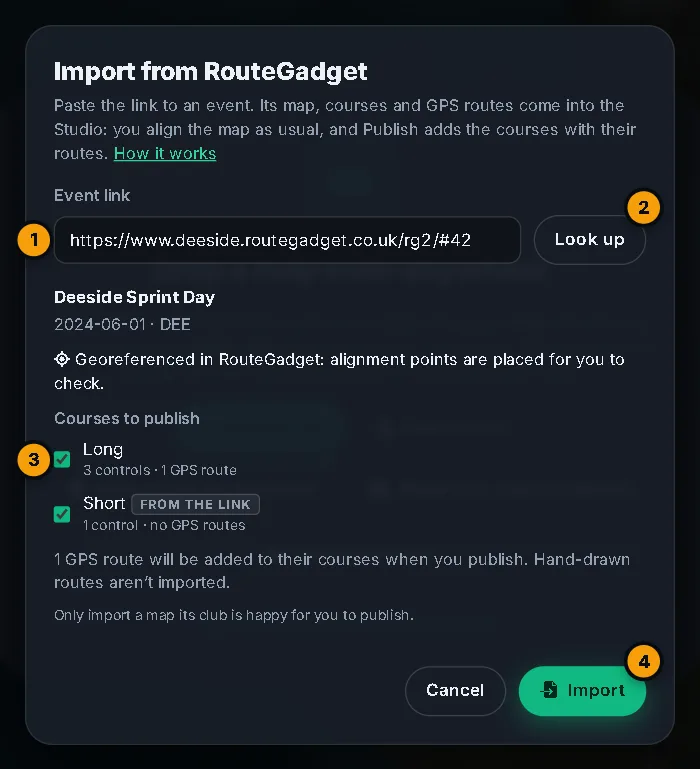
- Open the Studio and press Import from RouteGadget.
- Open the event in RouteGadget, copy its link from the address bar (it ends in
#and a number) and paste it into Event link. A link looks likehttps://www.yourclub.routegadget.co.uk/rg2/#123. Press Look up. - The dialog shows the event, its date and club, and whether it is Georeferenced in RouteGadget. Tick the Courses to publish: they are all ticked to begin with, and the course named in your link is tagged from the link.
- Press Import.
#What comes in
- The map becomes your scan. RouteGadget maps are often GIFs; oSplit converts them to PNG.
- Alignment. If RouteGadget has the map's position, nine point pairs are placed for you in a grid. The fit will look excellent whatever the real accuracy, so check it with swipe compare (C) and drag any point that is off. If there is no position, you match points yourself, as usual: see The Studio and aligning a scan. While you align, the imported course is drawn over your scan to help you find things to match.
- Courses come in with their RouteGadget names and control codes, drawn through the alignment. They can't be edited in the Studio. Use Edit course after publishing.
- GPS routes come in as shared tracks with one point every three seconds, timed from the runner's start on the event date. Hand-drawn routes aren't imported, only routes that were uploaded from a GPS watch or phone. Routes are trimmed to the part over the map, and a route that is entirely off the map is left out, with a note.
Score events bring in their map only: their courses and routes aren't imported yet.
#Publish
Press Publish. For an import the panel has a Courses from RouteGadget section: tick which to publish, and choose the Event, Date, Type, Map scale and Course visibility. Each course keeps its RouteGadget name, and its climb is estimated.
To add the GPS routes, tick Add the N GPS routes as tracks and the consent box: you confirm the routes are public on RouteGadget and that you have the club's permission to republish them under the runners' names. Everyone who can see a course sees its routes. You can publish up to 25 courses at a time.
A course that can't be published doesn't stop the others. The panel lists what happened for each.
#If something goes wrong
- That doesn't look like a RouteGadget event link: open the event in RouteGadget first, then copy the link.
- Only RouteGadget sites on routegadget.co.uk can be imported: other hosts aren't allowed.
- That event wasn't found or RouteGadget couldn't be reached: try again later.
- Too many attempts: imports are limited to a number an hour for each person. Wait and try again.