
Publish a map or a course
Give the map a title, choose who can see it, estimate the climb, and publish a new map, a new version or a course.
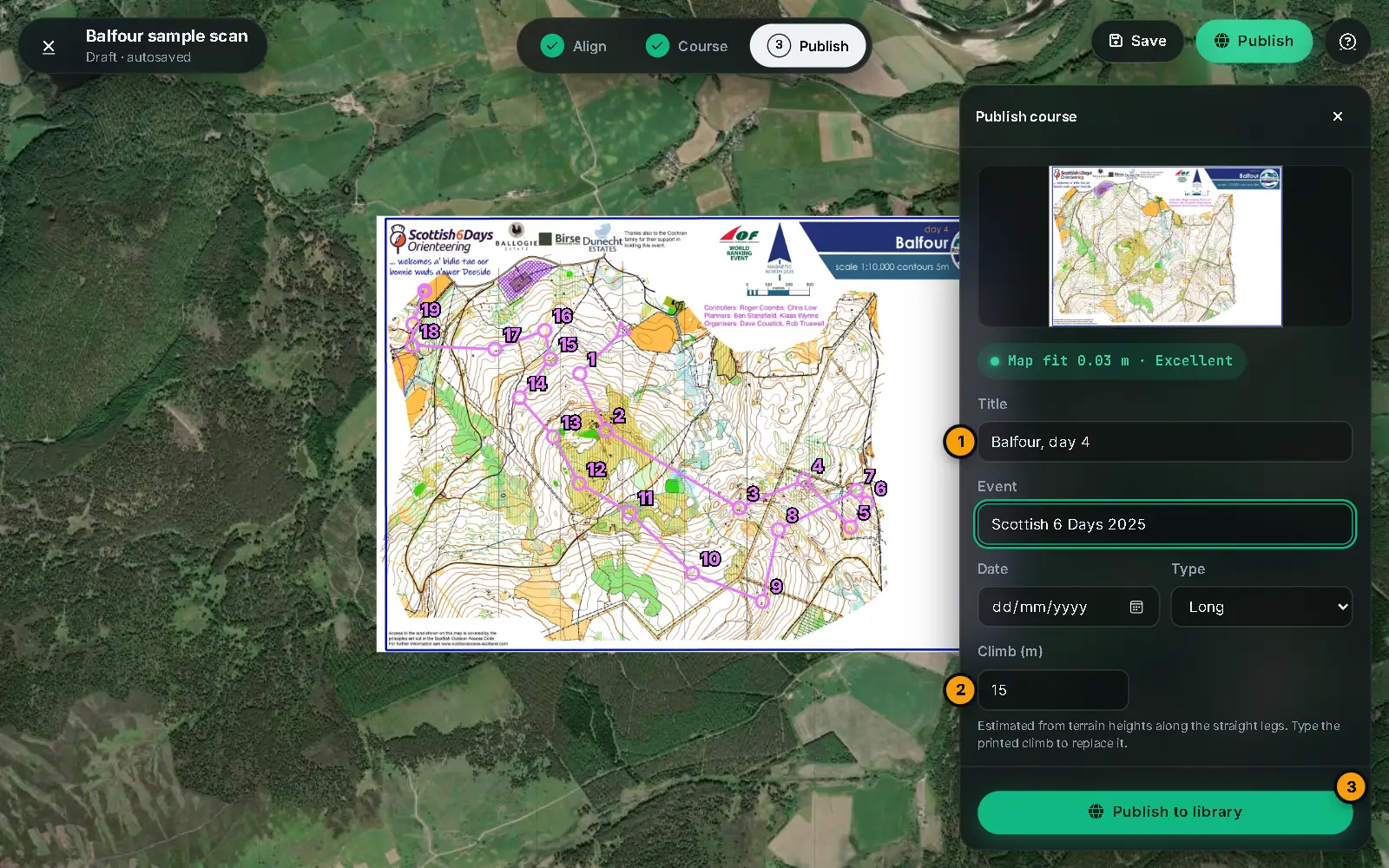
Press Publish at the top right, or Next: publish. A panel opens on the right with a preview of the warped map and its fit, for example Map fit 0.62 m · Excellent.
#What you are publishing
What the panel offers depends on where you came from and whether you are signed in.
| You are… | The button reads | What it does |
|---|---|---|
| making a map from a scan | Publish map | A new map, with its first course if you tick Also publish the course |
| updating a map you can edit (Update map) | Publish new version | A new version of that map. Courses on the map can move to it |
| adding a course to a published map (Add a course) | Publish course | A new course on that map |
| editing a course you can edit (Edit course) | Update course | Changes that course |
Signed out, the button reads Sign in to publish. Your project is saved and brought back when you return. Download files is always there: it saves the map image and a metadata file to your computer without publishing.
#The fields
- Title (or Map title and Course title), Event, Date and Type (Sprint, Middle, Long, Night, Relay, Score or Training).
- Map scale: 1:4,000, 1:5,000, 1:7,500, 1:10,000 or 1:15,000. It sizes the course circles on the map.
- Climb (m) is filled in for you from terrain heights along the straight legs between controls, smoothed over about 50 m. It shows Estimated from terrain heights. Type a number to replace it, for example the climb printed on the map: it is then marked As you entered it, and it will not change when you move controls. Clear the box for no climb. A course page shows an estimate as ≈.
- The course is already printed on the map scan is for scans that already have the course on them. The replay then opens without its own overprint.
- High resolution (4096 px wide) makes a larger map image. The default is 2048 px, which is plenty for most replays.
#Who can see it
Choose a Visibility for the map, and another for each course.
- Public: listed on the map for everyone.
- Unlisted: only people with the link can open it, and it is not listed.
- Private: only you and the people you invite.
A course can't be more visible than its map. With accounts, choose Who can add courses to the map: Anyone signed in, People I invite (as editors) or Only me. You can change all of this later: see Sharing and settings.
#After publishing
The panel shows what was made, with Open map or Open replay, Copy link and Send to watch. Keep editing returns to the Studio.
For a new version, oSplit warns if any controls fall outside the new map. By default the courses on the map move to the new version, and keep their place on the ground.
#Maps and versions
A map is one scan warped onto the ground. If you later re-scan it, or fix its alignment, publish that as a new version of the same map: courses drawn on older versions keep working, and their page offers to move them to the newest. Several people can add courses to one map.
#What gets uploaded
The warped map as an image, a small preview, the original scan (so the map can be re-aligned later; not for maps made from OpenStreetMap) and the metadata: your point pairs, the fit, the course, and the title and details. The map image can be up to 25 MB.
#Without accounts
On a server without accounts, publishing is simpler: Publish to library uploads a course that anyone can open. The browser keeps an edit key so you can update it later, and Private just downloads the files.
Courses published before accounts existed keep working. Use Claim on the course's page, or in your Account, to bring it into your account: see Account.