
Sharing and settings
Choose who can see and change your maps and courses, invite people, and decide who may add GPS tracks.
Every map and every course has a Settings button on its page. It shows for owners and editors, and only when accounts are on.
#Visibility
- Public: listed in Explore for everyone.
- Unlisted: only people with the link can open it. It isn't listed.
- Private: only you and the people you invite. Anyone else, signed in or not, is told it isn't there.
A course can't be more visible than its map, so wider choices are greyed out. If you narrow a map's visibility while other people have courses on it, you are asked first: 3 courses by other people will be hidden from everyone but them and you. Continue?
#Map settings
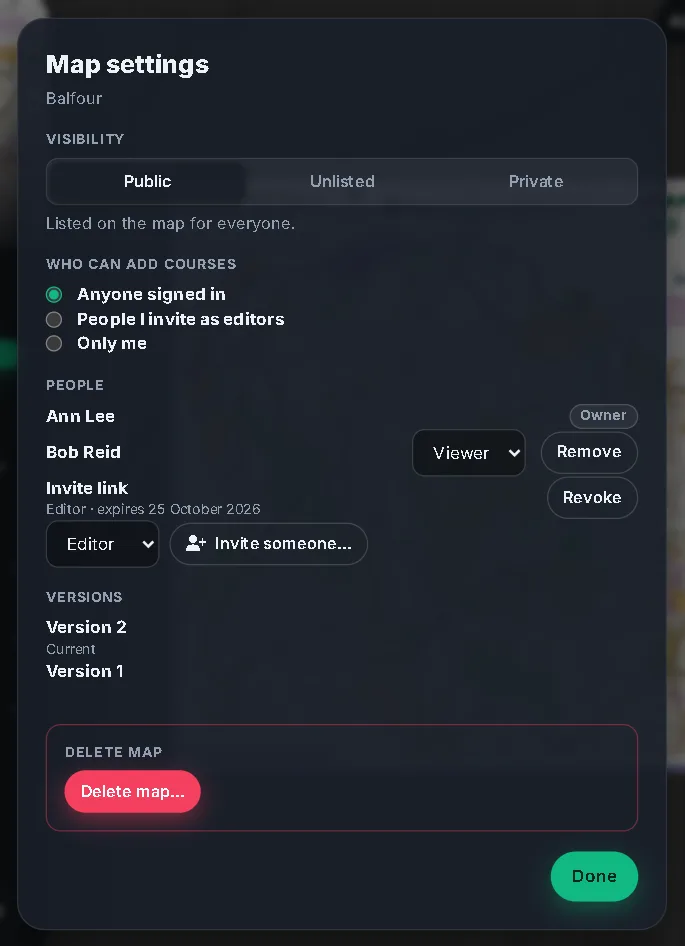
- Visibility as above.
- Who can add courses: Anyone signed in (the default), People I invite as editors or Only me.
- People: the owner, and everyone you have shared with, each as an Editor or a Viewer.
- Versions: the map's versions. You can Delete version for one that isn't current and isn't used by a course.
- Delete map…: type the map's title to confirm. It deletes the map, its versions and its courses and can't be undone. If other people have courses on it, ask an admin instead.
#Course settings
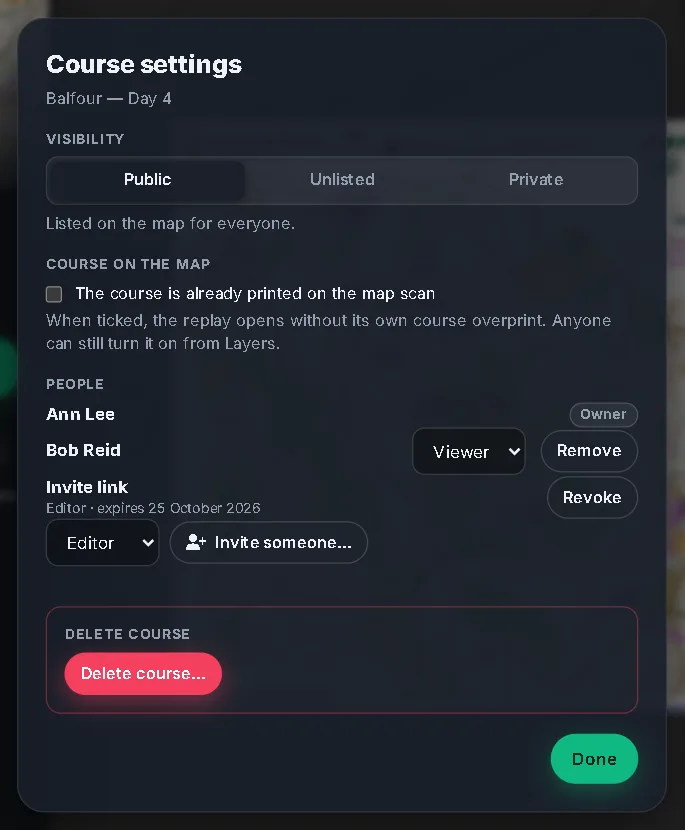
- Visibility, never wider than the map's.
- The course is already printed on the map scan: the replay then opens without its own overprint. Editors can change it.
- GPS tracks: Who can add tracks:
- Anyone, even without an account;
- Anyone signed in (the default);
- People I invite;
- Only me and editors.
There is also Approve new tracks before others see them, off by default. Only the owner can change these.
- People and Delete course… as for maps.
#Roles
- Owner: can do everything, including visibility, people, invitations, track rules and deleting.
- Editor: can publish new versions and edit courses, add courses where the map allows it, and run a course's tracks (approve them and remove other people's). Editors can see who has access, and Leave.
- Viewer: can open a private or unlisted map or course. They can't change it, and they count as a member for a course's "People I invite" track rule.
- Admin: a site administrator, who can help with anyone's content.
#Invite people
Open Settings on a map or course, choose a role (Editor or Viewer) and press Invite someone…. oSplit makes a link. It is shown only once, so copy it with Copy straight away. The link works once, within 7 days, and joins whoever opens it as that role. Open invitations are listed with Revoke.
Whoever opens the link signs in if they need to, and the map or course opens with a message like You're now an editor of "Balfour". If the link is old or already used, they are told it has expired or was already used. The owner can change a role or Remove a member at any time.
#Courses from before accounts
If you published a course before accounts existed, this browser may still hold its edit key. The course's page then shows You published this before accounts existed. Claim it to manage it from your account. Press Claim: it moves into your account and the old key is forgotten. The Account sheet can claim several at once.
#Taken down
An administrator can take a map or course down, for example if it breaks the rules. Only its owner and the administrators can then open it, and the owner sees a note with the reason. Everyone else gets the same message as for something that isn't there.