
Explore the library
Find a course on the map, open its page, and see the maps that courses are drawn on.
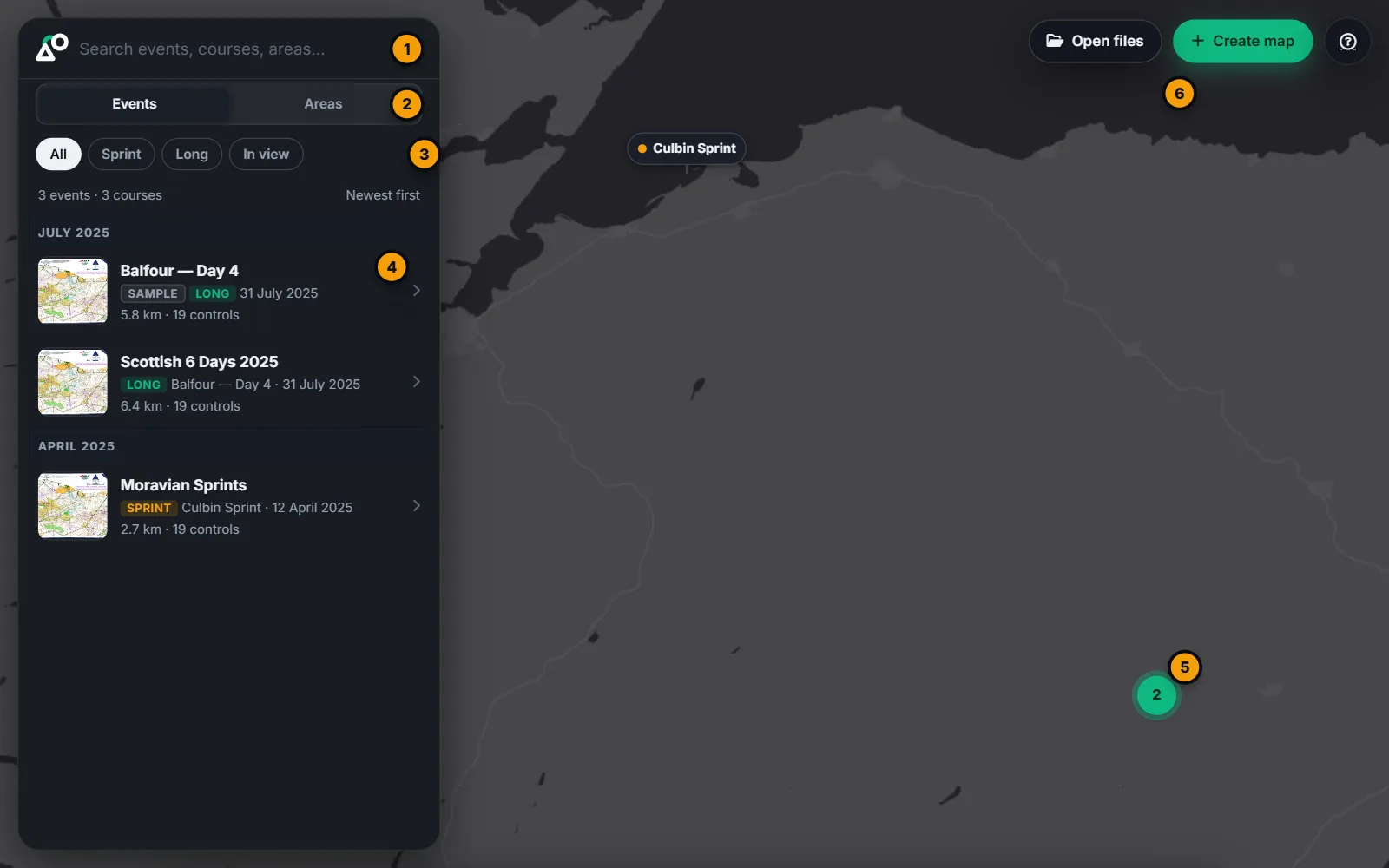
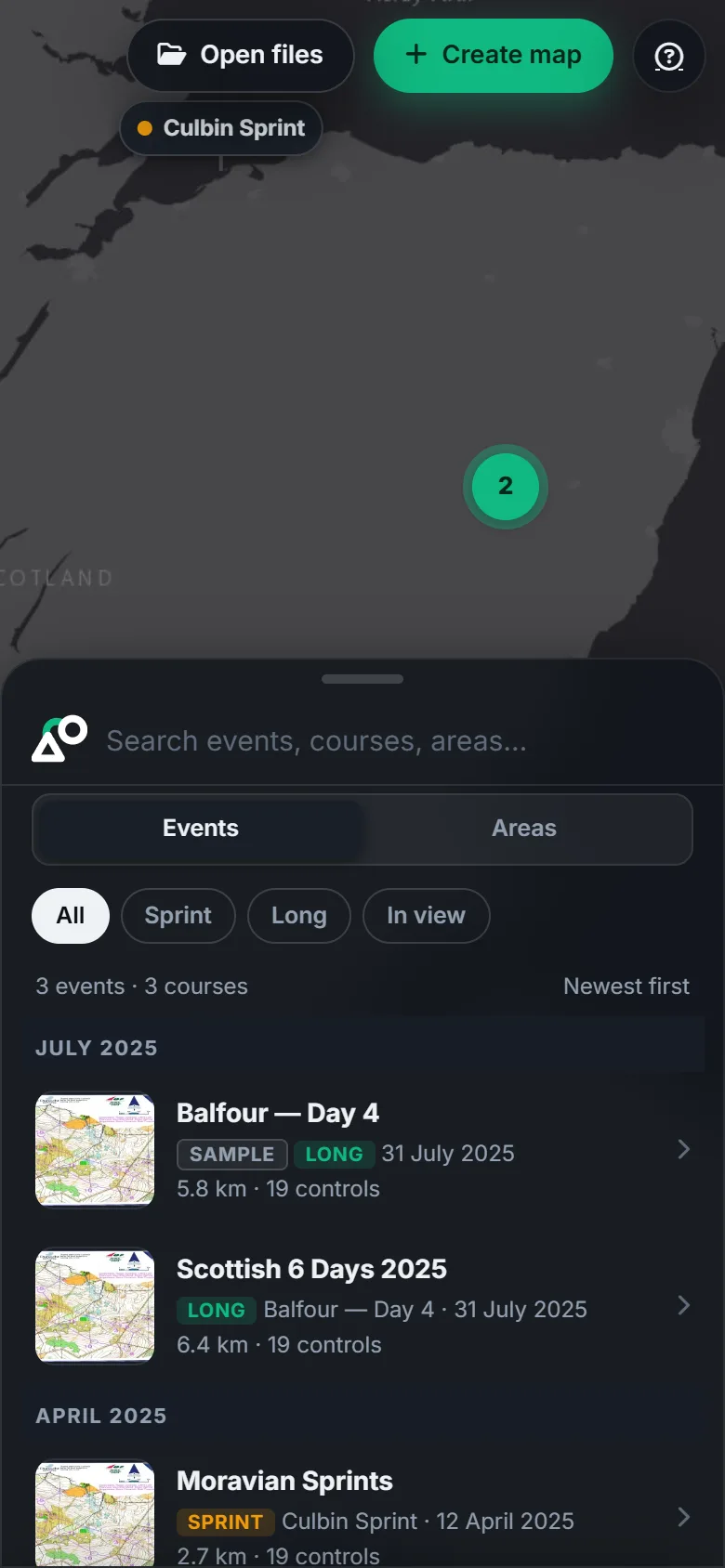
The home page is one map. Maps and courses published to oSplit appear on it as pins, with a list beside the map. You don't need an account to browse.
#Find an event or a place
The list has two views, chosen with the Events and Areas buttons at the top. oSplit remembers your choice.
- Events (the default) lists courses by event, newest first, under month headings such as October 2025. Each row shows the event, its date, the area it was held in and its courses (for example Long 6.1 km · Middle 3.8 km). An event with one course opens that course's page. An event with several courses opens up in the list so you can pick one.
- Areas lists places. Maps whose ground overlaps are one area, named after the map that was added last, with the other names shown under it (also Balfour). Each row says how many maps and courses the place has, and when a course was last run there.
- Search matches an event, a course, an area, an author and a type as you type, in whichever view you are on. Try an area, a club or an event name.
- Filter chips narrow the list by type. All is always there, and the other chips (Sprint, Middle, Long, Night, Relay, Score, Training) appear only for types that exist in the library. Signed in, you also get Mine, which lists everything you own or belong to, including your private and unlisted courses. In view limits the list to what the map shows now.
- Pins show where things are. A place with several maps is one pin with a count of its courses. Pins that would overlap gather into a numbered bubble: zoom in to pull them apart, or, when they sit on the very same spot, click the bubble for a short list to pick from. Point at a row to light up its pin.
- The Balfour sample is always in the list, with four runners to watch.
#An area's page
Pick an area with several maps, or its pin, and its page opens beside the map. It shows Events here, newest first, with their courses, and the Maps of that place. The map outlines each of them, and pointing at a row lights its outline. Pick a course for its page, or a map for the map's page. If the area's maps were not all named alike, the page says Also called ….
#A course's page
Pick a course and its page opens beside the map.
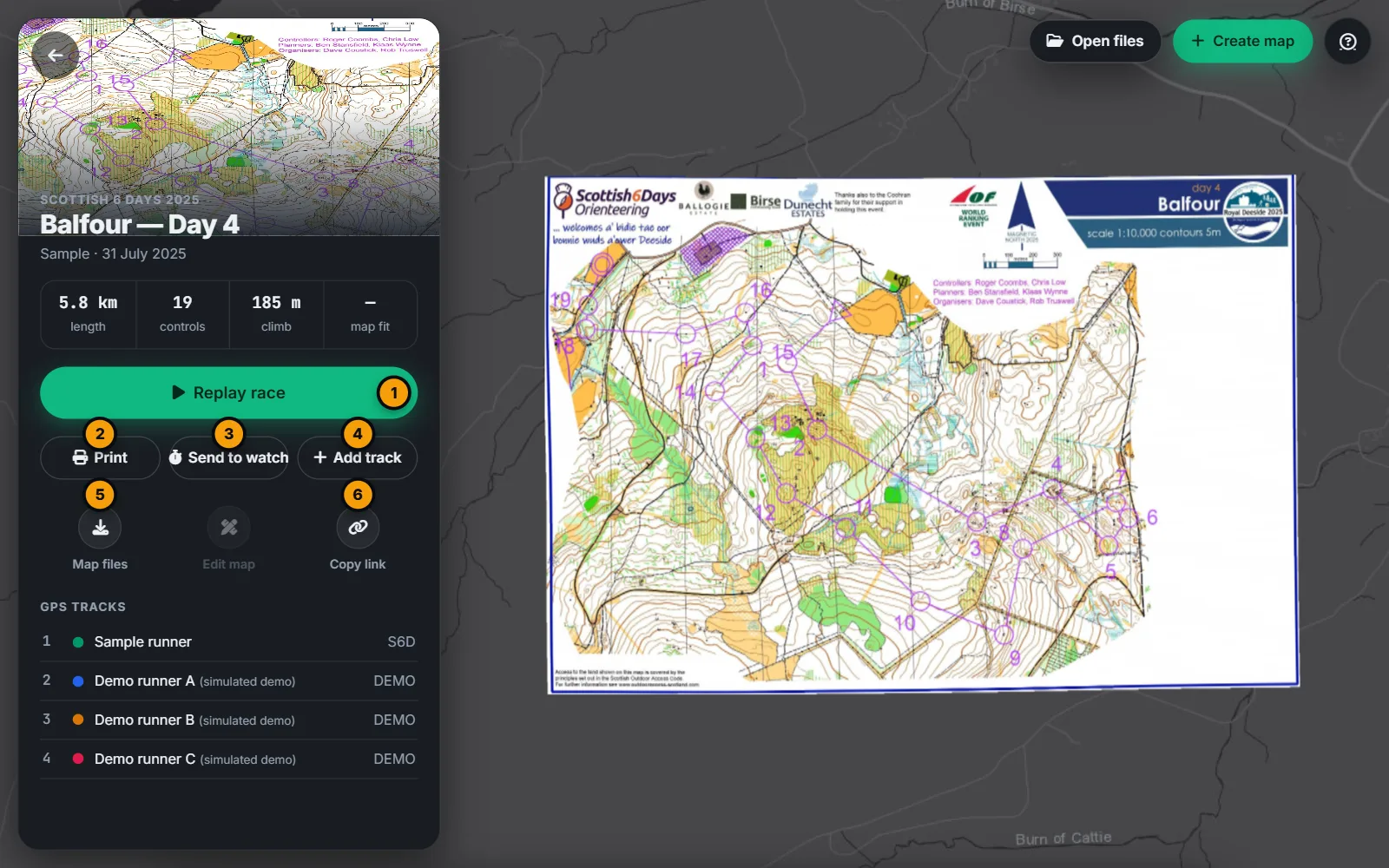
- The numbers under the title are the course's length, its controls, its climb and its map fit. The climb shows as ≈ when it was estimated from terrain heights rather than typed in. The map fit is how well the scan was matched to the ground, in metres.
- Replay race starts the replay. It reads View map when the course has no tracks yet.
- Print and Send to watch are here too, so you don't have to open the replay first. They are the same dialogs as in the replay: see Print to scale and The Garmin watch app. Send to watch shows only when the course has controls.
- Add track takes you to the replay with the Open files dialog ready. See GPS tracks.
- Map files downloads the map image and its metadata. You can open them again later with Open files.
- Copy link copies the address of this page.
- Edit course opens the course in the Studio. It is for the course's owner and editors. Settings (also for owners and editors) holds visibility, people and track rules: see Sharing and settings.
- Under GPS tracks you see the tracks people have shared with the course, with their times.
A course keeps the map version it was drawn on. If the map has since been re-scanned, the page says Drawn on map version N. A newer version exists. An editor can choose Move to the newest version; the controls stay where they are on the ground, so check them against the new map afterwards.
#A map's page
A map is a scan warped onto the ground. It can hold several courses and several versions. Click a map's pin, or the map's name on a course page.
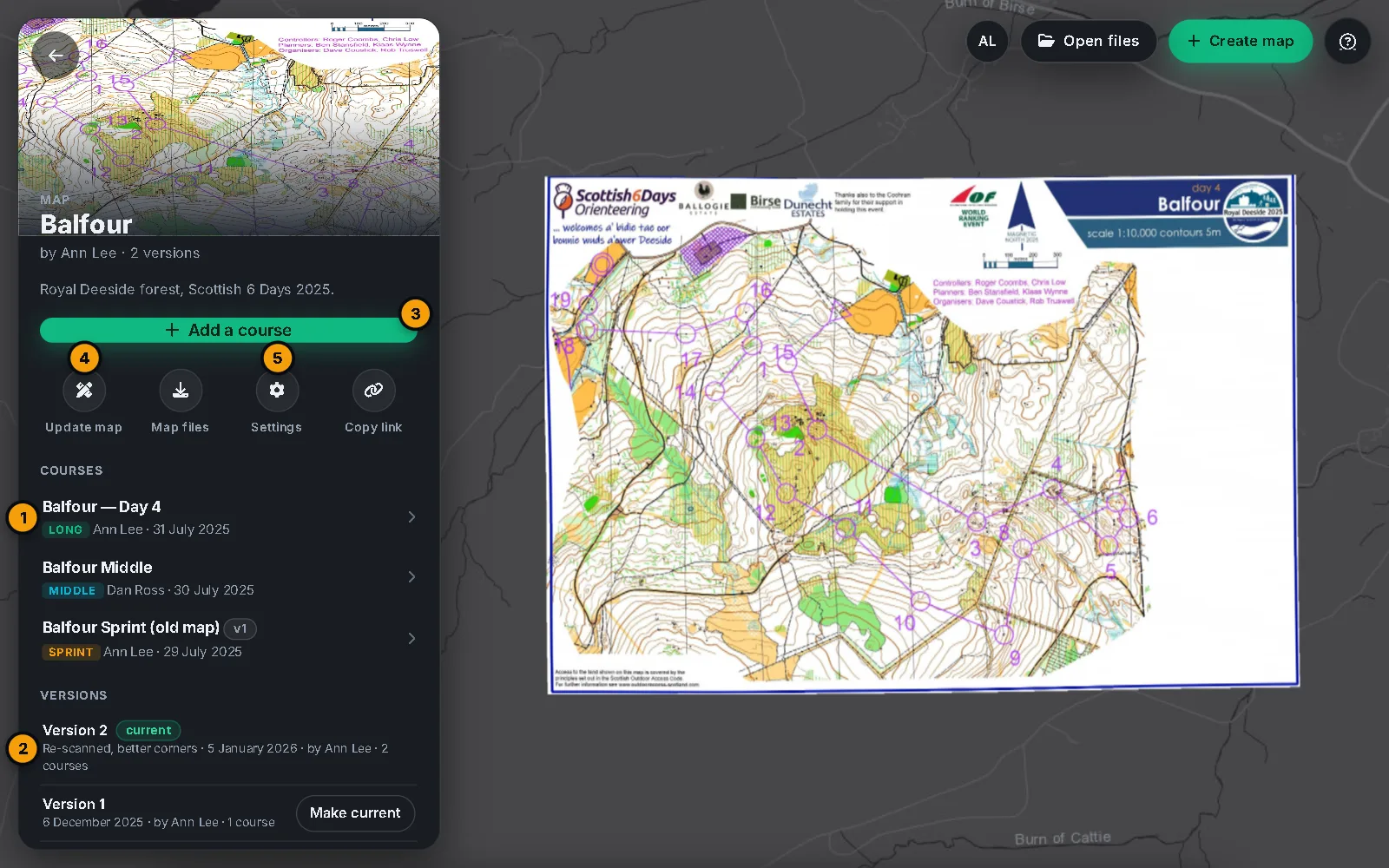
- Courses lists every course on the map. A badge such as v1 means the course was drawn on an older version.
- Versions lists the versions, newest first, with which one is current. Editors can make an older one current with Make current.
- Add a course opens the Studio to draw a new course on this map, with no scan to align. It shows when the map's settings let you add courses. Signed out, it reads Sign in to add a course.
- Update map is for editors: it opens the Studio to publish a better alignment as a new version. See Publish.
#Open your own files
Open files (top right) opens a map you have on your computer without publishing it: a warped map image together with its .json file, plus any GPS tracks. It lives only in your browser until you close the page. See GPS tracks.