
Headcam video
Put your GoPro headcam video next to the map, the race clock and your splits, ready for YouTube, with a short of any leg.
If you ran with a GoPro on your head, oSplit makes the video to share: your camera's picture with a panel beside it showing the course map turning with you, the race clock, the leg you are on and your last splits. It reads the camera's GPS and clock from the video files, so it lines the picture up with your watch track by itself, and you can check it by playing the result before anything is made.
#What you need
- The video files from the camera (
GX010123.MP4and so on) copied into one folder on your computer. Copy every file of the recording: a long recording is cut into several files. - Your watch track on the course, added to the replay, with the controls punched (the track has to visit them).
- A GoPro recording, ideally 4K 8:7 at 60 fps with GPS on: see Camera settings. GPS off works too.
#Make the video
Open the course's replay, then More → Headcam video.
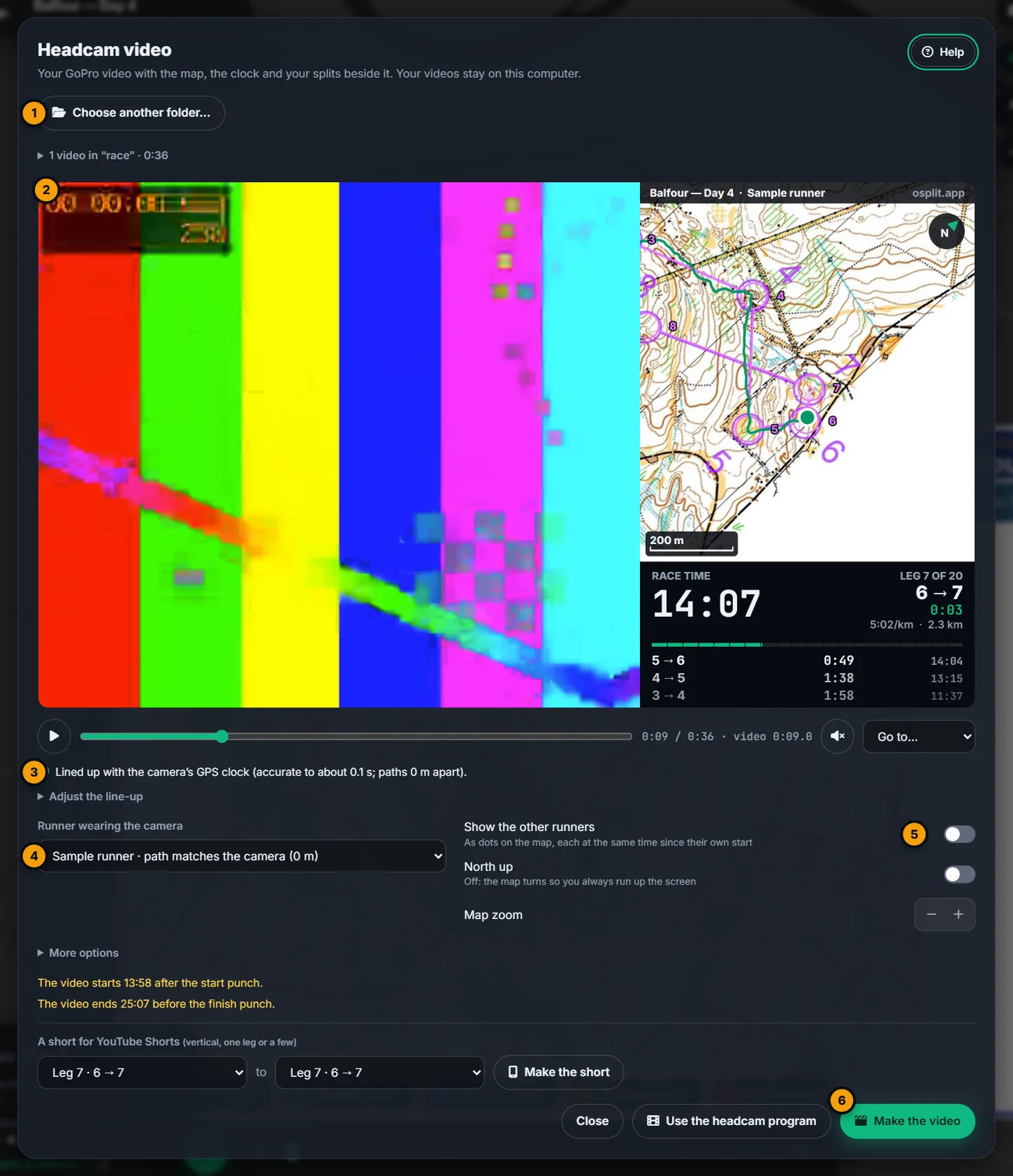
- Choose the folder with your videos… 1. oSplit reads every video in it and folds the list away when they are all read.
- Look at the preview 2: it is the finished video, your camera's picture on the left and the panel on the right. Press play, drag the slider, or pick a leg in Go to…. It starts just after your start punch.
- The line under it 3 says how the video was lined up. With GPS, oSplit compares the camera's path with your watch and corrects a camera clock that is a few seconds out (even 18 seconds, a common GPS mix-up).
- Runner wearing the camera 4 is chosen for you when the camera's path matches someone. Pick another runner if it is wrong.
- Show the other runners 5 draws them as dots, each at the same time since their own start, and shows your place on each leg. North up keeps north at the top instead of turning the map with you. Map zoom zooms in or out.
- Press Make the video 6. A progress bar shows the time left; keep the tab open (the computer is kept awake). The video,
GX0123-youtube.mp4, is saved in the folder, withGX0123-chapters.txt.
The settings are saved in the folder too (GX0123.headcam.json), so when you open the folder again everything you chose comes back.
#Check the line-up
Play the preview around a turn or a control. When you turn in the picture the map should turn with you, and when you reach a control the dot should be on its circle. If the map is a little early or late, open Adjust the line-up:
- Move the map in time: ◀ 1 s and ◀ 0.1 s move the map earlier (when it is behind the picture), 0.1 s ▶ and 1 s ▶ later. Play again to check.
- Start punch is here: move the preview to the moment you punch the start in the picture and press it. The video is lined up from that moment.
- Start punch is at and Finish punch is at: the same, typed as minutes and seconds (
0:45.2). With both, oSplit checks that the time between them agrees with your watch. - Back to automatic undoes all of these.
#If the video has no GPS
GPS drains the camera's battery, so it is fine to switch it off (a HERO12 has none). oSplit then compares how hard the camera shakes (running shakes your head far more than standing or reading the map) with your watch's speed, and finds where the video fits. It says how strong the match is.
If it is not sure, it says so and opens Adjust the line-up: move the preview to your start punch and press Start punch is here. A rough moment is enough: Fine-tune from movement then corrects it to about a second.
#Shorts
Under the preview, A short for YouTube Shorts: choose the first and last leg and press Make the short. You get a vertical 1080 × 1920 video (GX0123-short-leg5.mp4): your camera's picture on top, the map around you in the middle and the clock below, from a second and a half before the leg to a second after it. Only legs that are whole in the video can be chosen. YouTube Shorts can be up to three minutes long.
#Upload to YouTube
- Upload
…-youtube.mp4as it is. YouTube makes the lower qualities itself; 4K takes a while to appear after the upload. - Paste the chapters into the description: the dialog shows them with a Copy button. YouTube turns them into a chapter for each leg.
- More options has Video size: 4K (recommended) or 1440p, a much smaller file that is quicker to make and to upload. Also there: where the video starts and ends (15 seconds before your start punch and 10 after your finish by default), the panel's frame rate, and Title on the map (the course, the runner and osplit.app across the top of the map).
#How long it takes
Making the video is not real time: every frame is decoded, drawn and encoded. On a 2014 computer with a 2015 graphics card, 4K at 60 fps went at about 0.3 × real time (an hour of race in about three hours); a newer computer is much faster. A 4K video is about 30 GB an hour of race; keep that much space free in the folder.
#If your computer cannot make it here
The GoPro HERO cameras record 4K in HEVC, which the browser can only read if the graphics card decodes HEVC (most computers since about 2017, and every Apple Silicon Mac). When it cannot, the preview shows the panel without the picture and the dialog says so. Then press Render panel for the headcam program: oSplit saves the panel as a video of its own, and the free headcam program puts it beside your camera's video with ffmpeg. Everything above (line-up, options, shorts) works the same way.
You can also use the headcam program on any computer for a smaller, higher-quality file: Use the headcam program.