
GPS tracks
Add your own GPS track, see which formats work, and decide whether to share it with a course.
#Add a track
On a course's page choose Add track, or in the replay choose Track next to the runners. You can also drop files anywhere on the page. All of these open the Open files dialog.
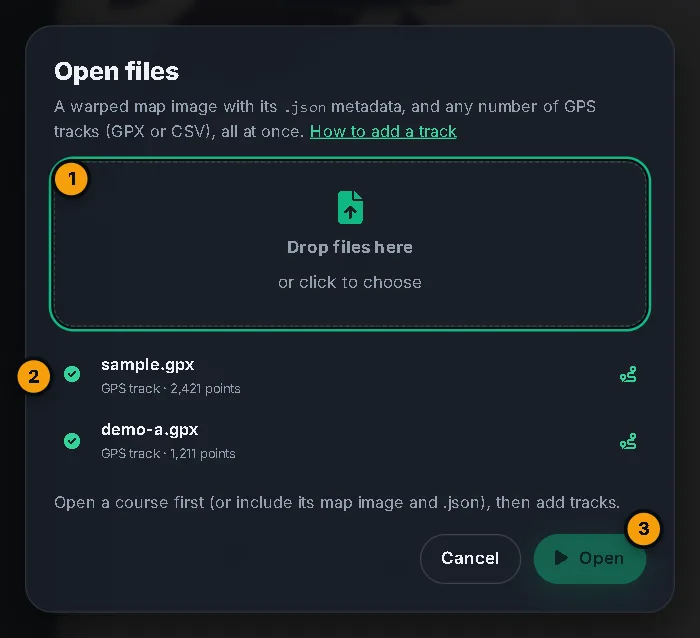
Each file is checked and listed with a tick or a cross, and the hint under the list says what will happen: Adds 2 tracks to the current replay.
Your track appears as a new runner, named after the track in the file or the file name. By default it stays on your computer: nothing is uploaded unless you choose to share it.
#Formats
Use GPX or CSV.
- GPX files use their track points (or route points if there is no track). Each point needs a latitude and a longitude. Add the time of each point for a real-time replay.
- CSV files need a header row. The columns are found by name:
latorlatitude;lon,lngorlongitude; and optionallytime,timestampordate. Times can be ISO dates or numbers of seconds. Commas, semicolons and tabs all work. - FIT, TCX and KML files aren't supported yet. oSplit tells you so: export a GPX instead, from Garmin Connect or Strava.
#Open a map you have on your computer
Open files also opens a course that isn't in the library. Choose the warped map image (PNG, JPG or WebP) and its .json file together, which you get from Map files or the Studio's Download files. Add GPS tracks in the same dialog. The course exists only in your browser and is gone when you close the page.
#Share a track with a course
In the library, a course can collect tracks from many people. When you add tracks to a library course, the dialog has a Share with this course switch, off by default.
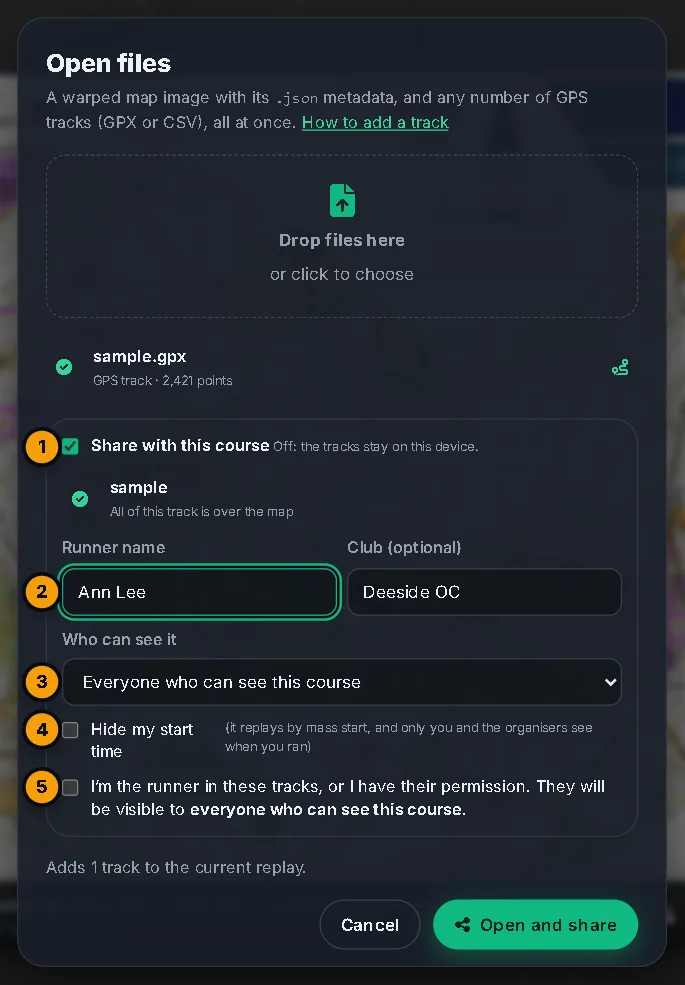
When it is on:
- Only the part of your run over the map, plus 300 m, leaves your device. The dialog tells you how much was trimmed. Only positions and times are kept. Heart rate, elevation and device details are dropped.
- Type the Runner name, and a Club if you like. Signed in, a single track starts with your account name and club.
- Who can see it: everyone who can see the course, only the course organisers and you, or only you.
- Hide my start time replays your track by mass start, and only you and the organisers can see when you ran.
- Tick the box to confirm you are the runner or have their permission.
The button then reads Open and share. If the course's organisers want to approve tracks first, the track waits for them and is marked Pending approval.
Whether you can share depends on the course's settings, set by its owner: anyone (even without an account), anyone signed in, people they invite, or only the owner and editors. If you need an account, the dialog says so and keeps your files while you sign in.
#Without an account
If the course allows it, you can share without signing in. You pass a quick bot check, and you get a delete key. It is shown once and also saved in this browser: it is the only way to remove the track later. If you sign in afterwards, Claim in your Account (or Have a delete key? on the course's page) moves it into your account.
#See and manage shared tracks
A course's page lists the shared tracks, ranked by time, with badges: Pending approval, Organisers only, Only me, Start time hidden and From RouteGadget.
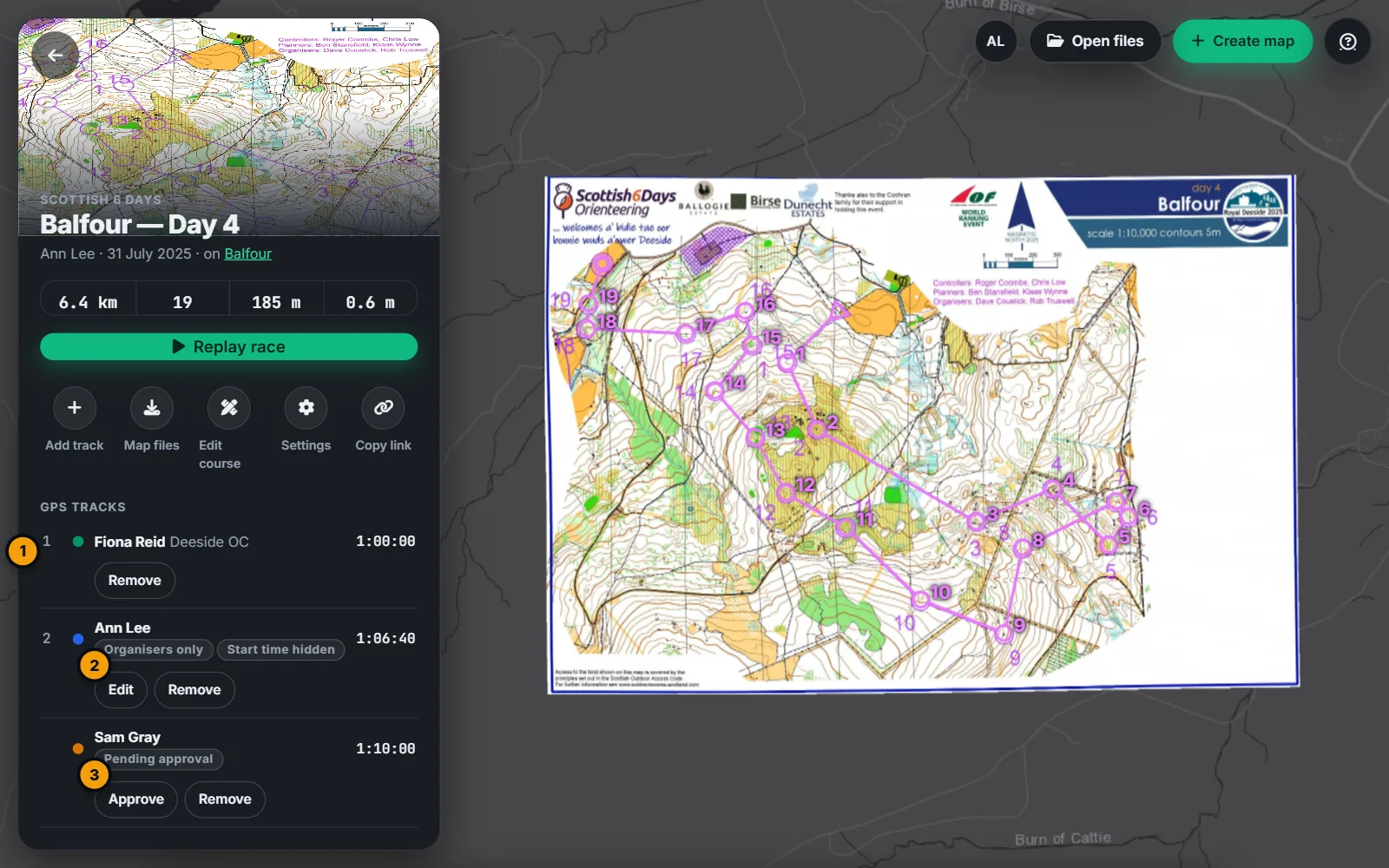
- Edit changes your own track's name, club, visibility and hidden start time.
- Remove deletes a track for everyone. You can remove your own; course organisers and admins can remove others.
- Approve is for the organisers, when approval is on.
Your own tracks are also listed in your Account: see Account.